Documentation
Setting up your tracking
Choose the prompts, topics and competitors that make your data meaningful.
Last updated:
October 20, 2026
The quality of your data depends on what you track. This page covers how to build a prompt set, organise it into topics, and configure competitors and project settings. If you haven't created a project yet, start with Getting started.
Choose your prompts
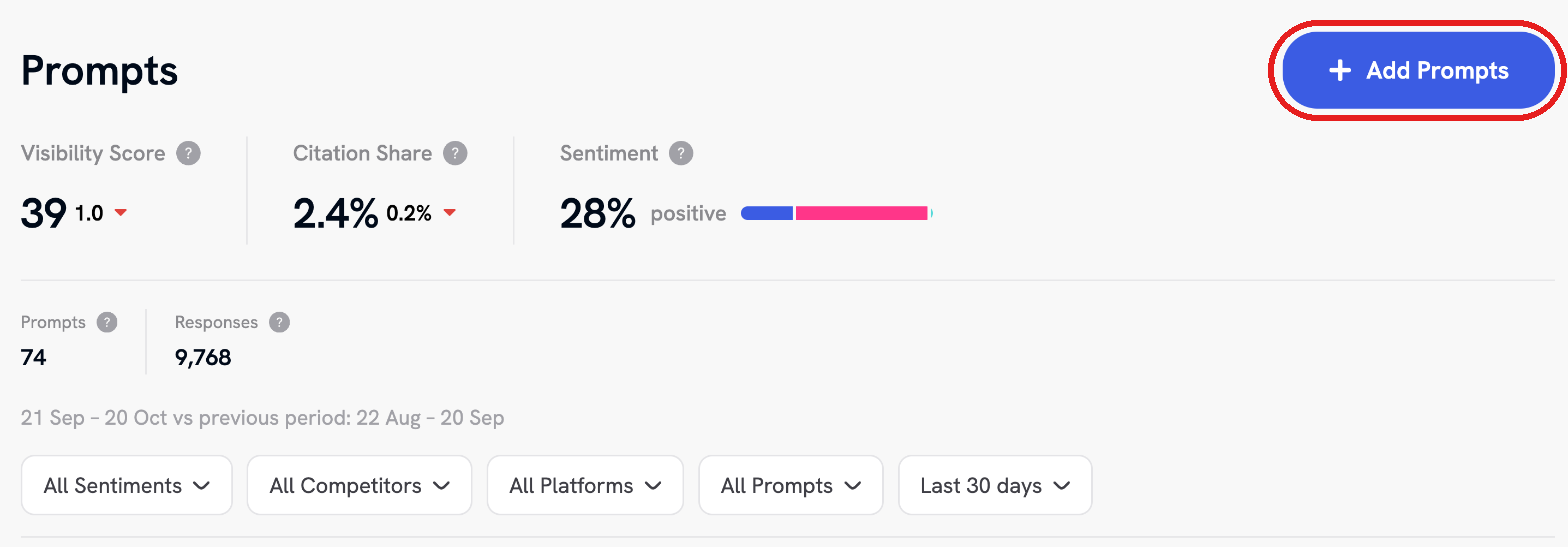
A prompt is a question or search phrase that Brand Recon sends to every AI platform on a regular schedule. Open Prompts in the project menu and select Add Prompts to add more. Your plan sets how many prompts you can track in total across your whole account, not per project. On a 100-prompt plan you could run 100 projects with one prompt each, or 5 projects with 20 prompts each. See the plans table below.
Good prompt sets cover the whole path a customer takes, not just one question. A useful spread:
- Category prompts, such as "What is the best AI visibility tool?", which show whether you are recommended to people who don't know you yet
- Comparison prompts, such as "[Competitor] alternatives", which show whether you appear when someone is evaluating a rival
- Audience and use-case prompts, such as "Best tool for marketing agencies", which show whether you are recommended for specific needs
- Price, integration and support prompts, which show how AI answers practical buying questions about you
Brand Recon marks each prompt Brand if it names your brand and Non Brand if it doesn't. Keep both. Non Brand prompts measure discovery, and Brand prompts show how AI describes you once someone is already asking about you.
Write prompts the way people actually ask. Full questions and short search-style phrases both work. Avoid very narrow prompts, which produce thin data. Removing a prompt changes your historical trends, so remove prompts deliberately rather than as routine tidying.
Plans and prompt limits. Plans differ mainly by how many prompts you can track. Every plan includes unlimited brand projects, unlimited topics, all four AI platforms, updates every 3 days and the MCP connector.
| Plan | Monthly | Annual (per month) | Prompts |
|---|---|---|---|
| Starter | $49 | $40 | 100 |
| Growth | $199 | $165 | 300 |
| Scale | $499 | $415 | 600 |
Annual billing gives 2 months free. Annual Growth adds a live product walkthrough, expert-curated prompt research, a bespoke AI visibility roadmap and optional matchmaking with an agency partner. Annual Scale adds a live walkthrough, agency partner status (a listing in the AEO agency directory and the option to pitch for leads) and co-marketing opportunities. If you need more prompts, custom reporting or a tailored setup, contact Brand Recon about an Enterprise plan. Prices are correct at the time of writing; the pricing section on brandrecon.ai always has the current figures.
The prompt counter in the project builder, such as 69 / 300, shows how many prompts you have used against your plan's account-wide allowance.
Organise prompts into topics
A topic groups related prompts, for example Price, Integrations or Use Case. Each prompt belongs to one topic, and Brand Recon reports visibility, citation share, sentiment and competitor rankings for every topic.
Topics matter because individual prompt results fluctuate. A topic averages many prompts, so it is the more reliable view of performance, while the prompt list lets you drill into specifics. Reading your data shows where each topic's results appear.
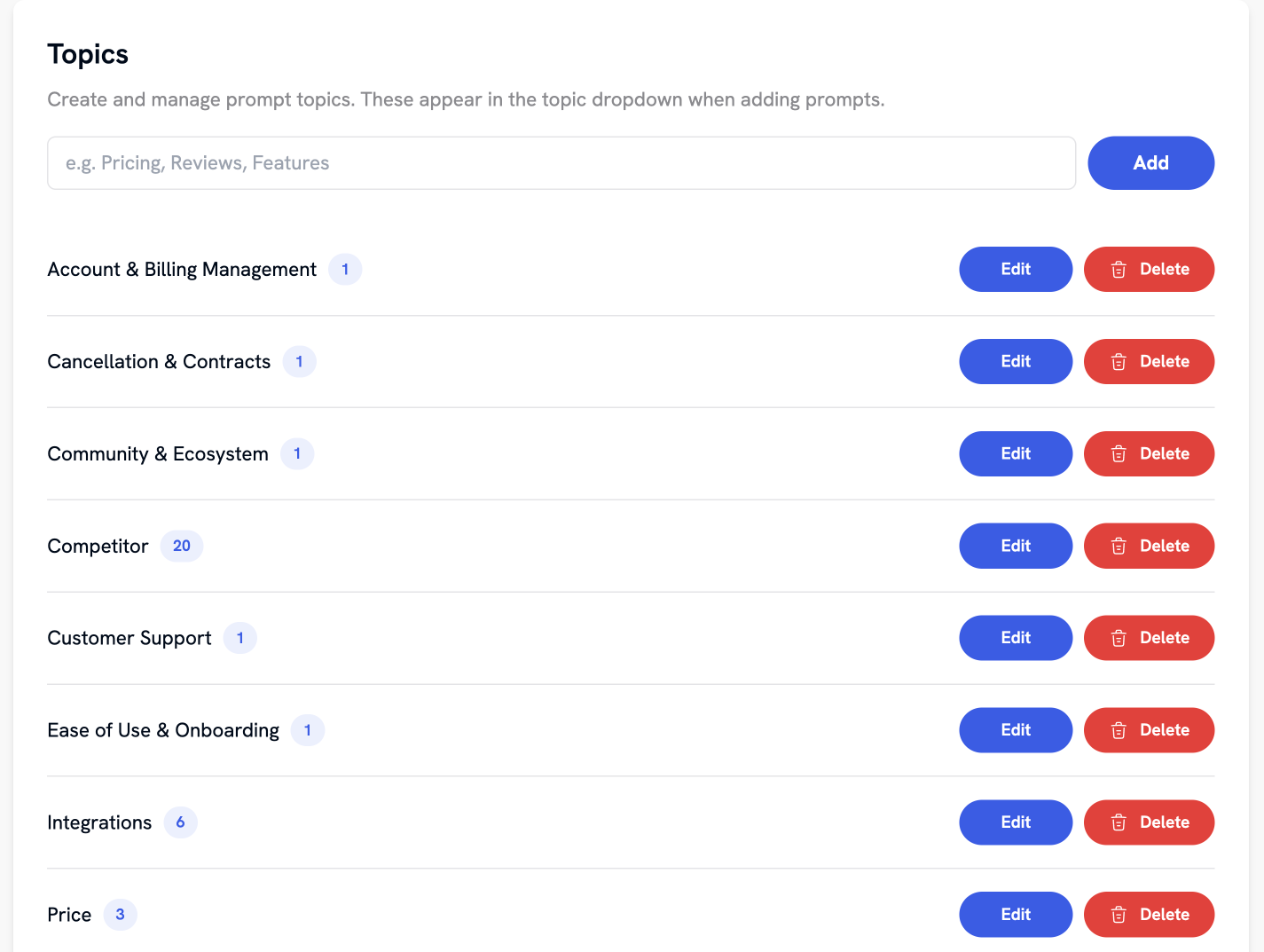
To manage topics, open Settings, then Topics. You can create a topic, edit its name, or delete it. New topics appear in the topic dropdown when you add prompts.
Set up competitors and project settings
Open Settings from the project menu. It has five sections:
| Section | What it does |
|---|---|
| Identity | Your brand name and domain, plus name matching. |
| Competitors | The other brands tracked alongside yours, each with a name and domain. A project can track up to 8. |
| Paid URLs | Mark exact citation URLs as paid content. This doesn't change your data. It tags those URLs in the tables so you can filter and scan them, set aside content you paid for, and check how it performs. |
| Topics | Create, edit and delete topics. |
| Danger zone | Delete the project, which permanently removes its prompts, responses, citations and settings. It cannot be undone. |
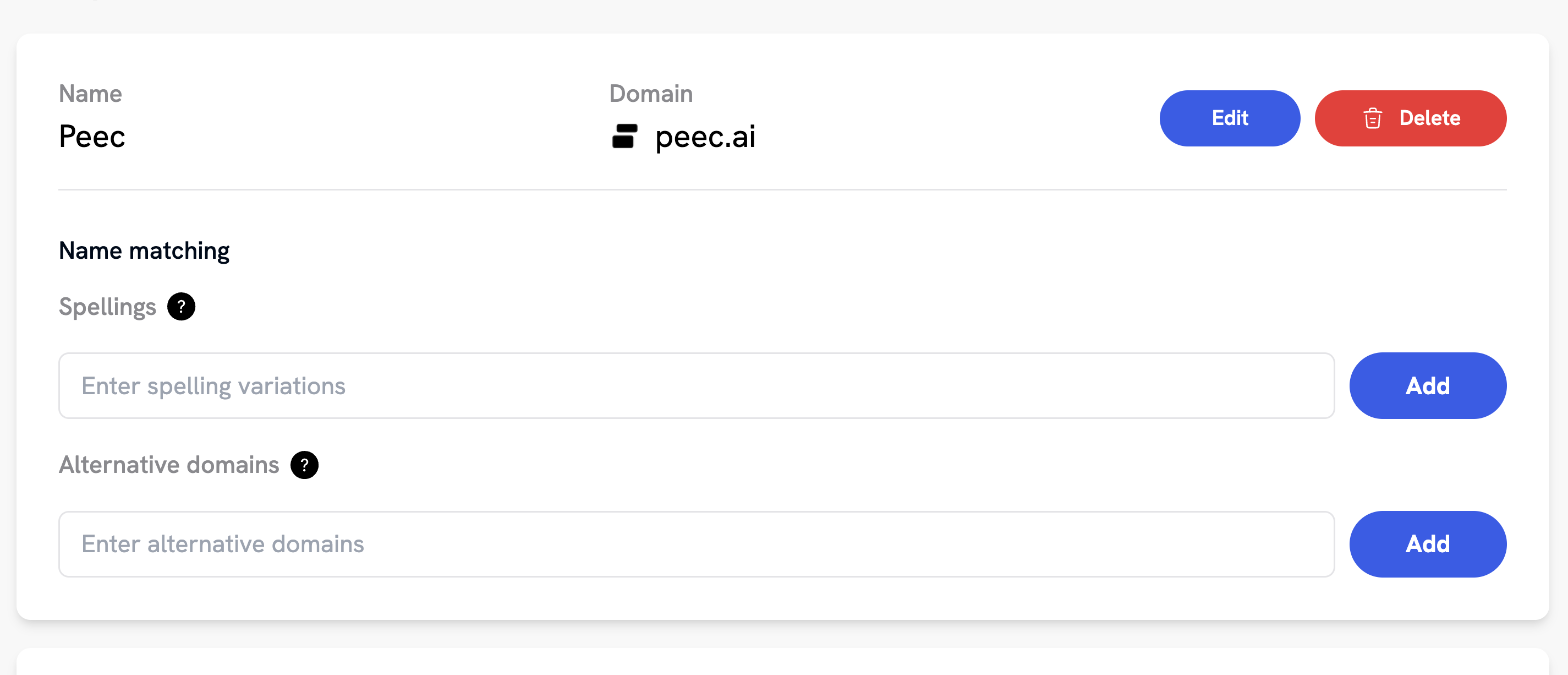
Name and domain. Your brand's name and domain appear at the top of Identity for reference. They can't be edited on this screen.
Name matching. Your brand and every competitor each have two name-matching fields. Type a value and select Add.
- Spellings: common misspellings, abbreviations or alternative names, for example "McDonalds", "Maccas" or "MCD" for McDonald's. These help Brand Recon detect mentions in AI responses that don't use the exact name, and decide whether a prompt counts as Brand.
- Alternative domains: other domains that belong to the brand, such as regional sites, subdomains or acquired properties. Citations that link to these domains are counted as that brand's citations.
Add every variation people or AI platforms might use, such as a name with and without a space or a product name. Do the same for competitors so their mentions and citations are counted correctly too.
Add, edit or remove a competitor. Under Competitors, select + Add competitor, enter the competitor's name and domain, then select Add competitor. To change a competitor, select Edit, update the name or domain, then select Save. A project can track up to 8 competitors.
Select Delete to remove a competitor. Your stored raw data isn't affected, but the competitor no longer appears in comparison tables or elsewhere in the app. Where an AI response mentions it, it shows up as an untracked competitor.
Mark paid URLs. Under Paid URLs, enter the exact URL of a piece of paid content, such as example.com/sponsored/article, and select Add. Marked URLs are labelled in your citation reports, so you can tell paid placements from organic mentions.
Manage topics. Under Topics, type a name and select Add to create a topic. Each topic shows how many prompts it contains. Select Edit to rename a topic, then Save. Topics you create appear in the topic dropdown when you add prompts.
Every prompt belongs to a topic, so deleting one asks you what to do with its prompts. Select Delete, choose another topic in the Reassign to drop-down, and confirm. The prompts move to that topic.
Choose competitors carefully. Pick the brands that AI platforms already group you with when answering your category questions, rather than every rival you can name. Rankings and share figures are relative, so the set you choose shapes every number in the dashboard.
One project per brand. If you run separate brands or product lines with their own competitors, create a separate project for each. A shared project mixes competitor sets and muddies the comparison. Taking action covers running several brands or clients from one account.